
Paperwork, even in its digital form, is rarely a source of excitement. For both landlords and tenants, the administrative burden of documentation can be a significant pain point. From lease agreements to maintenance requests, the sheer volume of forms and letters can be overwhelming.
At its best, handling paperwork is a mundane, repetitive task. At its worst, it can become a time-consuming and frustrating ordeal, prone to human error and delays. This inherent inefficiency makes paperwork an ideal candidate for automation, allowing businesses to streamline operations and reduce the administrative load.
Pro tip: Identify repetitive tasks that consume significant time and are prone to human error. These are often the best candidates for automation, offering the quickest and most impactful returns.
The question then arises: what types of real estate paperwork can truly benefit from automation? While the real estate industry is notoriously paper-heavy, surprisingly little has been written about specific automation strategies for this sector. This guide aims to address that gap by focusing on a crucial document: the rental reference letter.
Choosing rental reference letters for automation isn't arbitrary. These letters are vital for both tenants seeking new housing and landlords evaluating potential renters. They contribute to robust rental scoring systems and, despite the availability of templates, can be surprisingly difficult and time-consuming to produce consistently. Effective references can often be the deciding factor in securing a tenancy.
How to Automate Rental Reference Letters
This automation scenario will demonstrate how to generate personalized rental reference letters using Google Docs, triggered by new responses submitted through a Google Form, all orchestrated by Make (formerly Integromat).
This setup is designed for beginners and can be implemented in approximately 10 minutes. You will need a Make account, a Google account with Make integration, and a dedicated folder in Google Drive containing your Google Docs templates and Google Sheets for data storage.
If you're tired of drafting the same recommendation letter repeatedly each month, this three-step process will help you automate the entire workflow efficiently.1. Create a Letter Template with Google Docs
The first step involves creating a template for your rental reference letter in Google Docs. You can either design your own from scratch or utilize an existing template and modify it to suit your needs. The key to making this template dynamic is to use placeholders for any information that will vary between letters.
These placeholders should be enclosed within double curly brackets, often referred to as "mustaches." For example, if you need to insert the tenant's name, you would use {{first_name}}. Similarly, for their age, you might use {{age}}. This convention allows Make to easily identify and replace these tags with actual data.
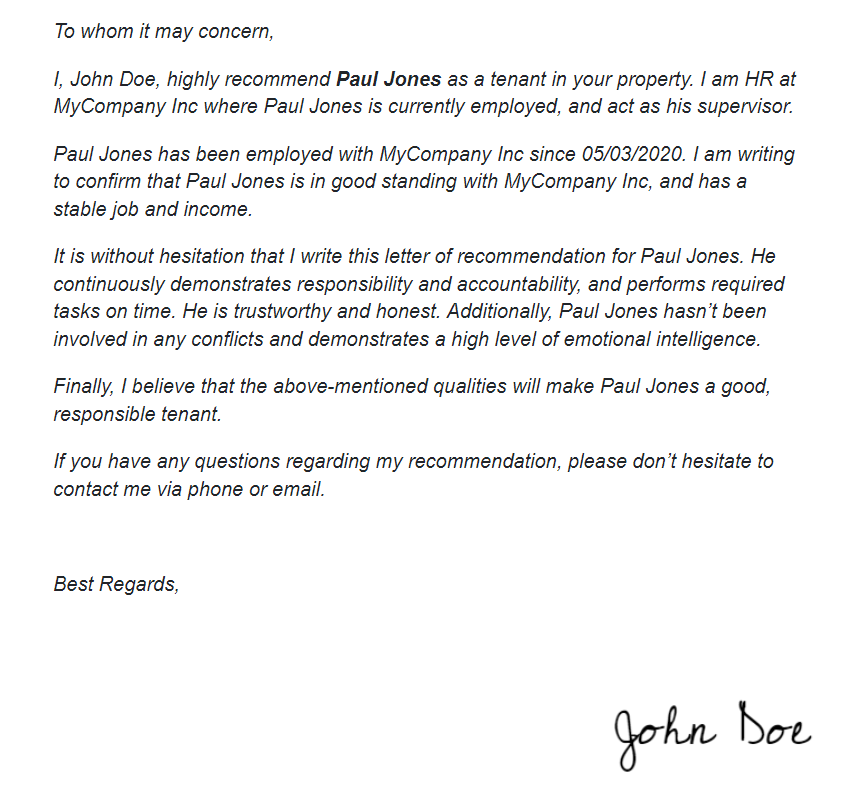
Ensure that every piece of information you wish to personalize in the final letter has a corresponding unique placeholder in your Google Docs template. This meticulous setup is crucial for the automation to function correctly and generate accurate, tailored documents.
2. Create a Google Form
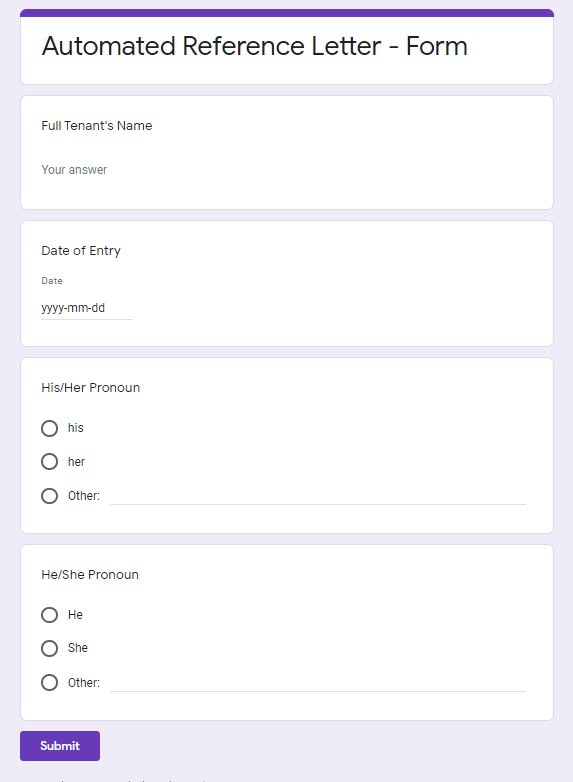
Once your Google Docs template is ready, the next step is to create a Google Form. This form will serve as the data collection point, gathering all the dynamic information required to populate your letter template. For each placeholder you defined in your Google Docs template, you should create a corresponding question in your Google Form.
For instance, if your template includes {{tenant_name}}, your form should have a field for "Tenant's Full Name." After designing your form, submit a test response by clicking "Preview" and filling it out. This initial submission is important for setting up the connection to Google Sheets.
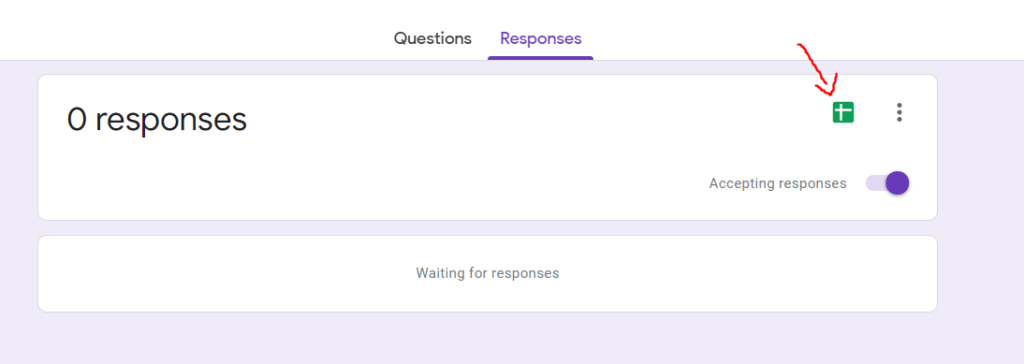
Navigate to the "Responses" tab within your Google Form and click the green icon to create a new Google Sheet. This spreadsheet will automatically store all future form submissions, acting as the central database that Make will monitor for new data to trigger the letter generation process.
3. Create Your Make Scenario
With your Google Docs template and Google Sheet for responses in place, it's time to connect them using Make. You'll create a new scenario in Make that consists of two primary modules: "Watch Rows (Google Sheets)" and "Create a Document from a Template (Google Docs)."
The "Watch Rows (Google Sheets)" module will act as the trigger for your automation. Each time a new row is added to your Google Sheet (meaning a new form response is submitted), this module will detect it and initiate the scenario. This ensures that every new request for a rental reference letter automatically kicks off the generation process.
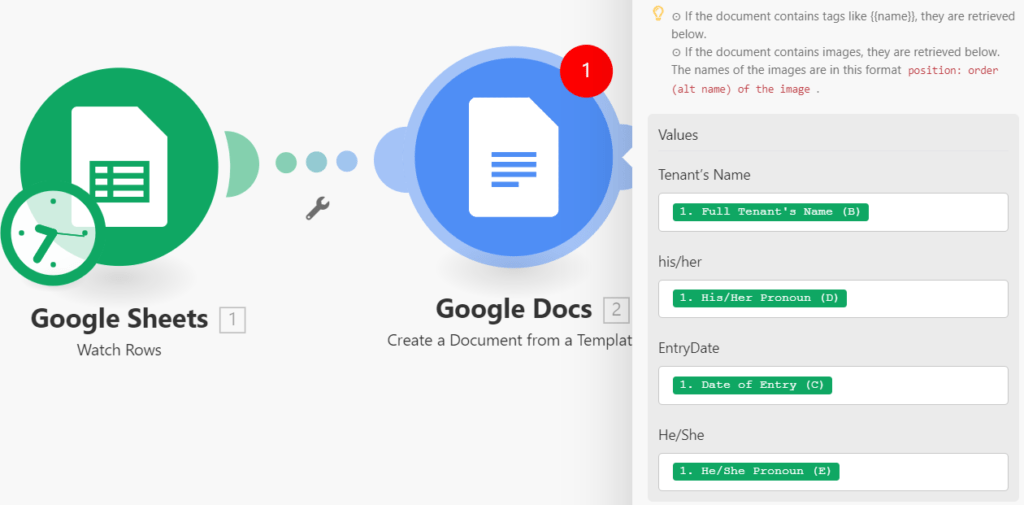
In the "Create a Document from a Template (Google Docs)" module, you will map the data fields from your Google Sheet to the corresponding placeholders in your Google Docs template. This is where the magic happens: Make will take the information from each row in your spreadsheet and insert it into the correct spots in your document, creating a fully personalized rental reference letter. You can also add an email module to automatically send the generated documents.
Pro tip: Always use clear and consistent naming conventions for your form fields and template placeholders. This makes mapping data in Make much easier and reduces the chance of errors.
Final: Time to Test!
Once your Make scenario is configured, the final step is to thoroughly test your automation. Activate your scenario in Make and then submit a new response to your Google Form. Observe the workflow to ensure that a new, personalized rental reference letter is automatically created in your designated Google Drive folder.
If everything works as expected, you've successfully created your first automated reference letter! This automation brings several significant benefits:
- One less repetitive task to take care of
- A better information flow to comply with rental scoring systems
- Better tenants, and happier landlords
Embrace this challenge and implement this automation today. The time savings and increased efficiency will be well worth the initial setup effort. Happy Automating!