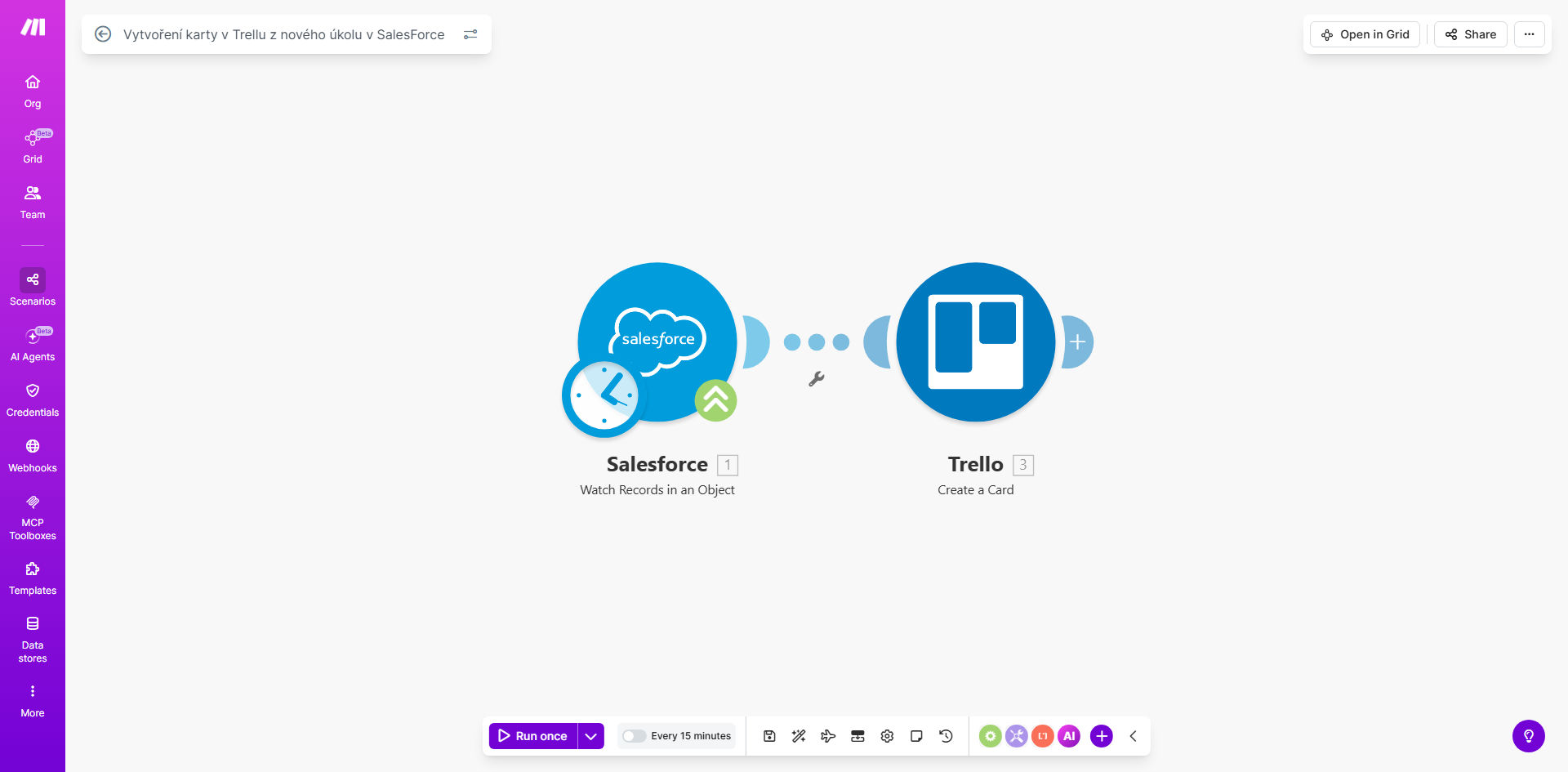
What This Workflow Does
For businesses using Salesforce as their customer relationship hub and Trello for project management, a critical gap often exists. Tasks created in Salesforce—like "Schedule onboarding call" or "Follow up on proposal"—require manual copying into Trello for the operations or support team to execute. This manual process is slow, error-prone, and leads to tasks being forgotten, causing delays in customer service and internal frustration.
This automated workflow solves that problem entirely. It acts as a real-time bridge between your CRM and your project board. Every time a sales rep, account manager, or customer success agent creates a new task in Salesforce, this system instantly creates a corresponding, detailed card in your designated Trello board. The right team is notified immediately, work begins faster, and you gain full visibility into the execution of every customer-related action.
How It Works
The automation follows a simple but powerful sequence, ensuring data flows accurately from one system to the other without any human intervention.
Step 1: Monitor Salesforce for New Tasks
The workflow starts by watching a specific Salesforce object—the Task object. It uses a "Watch Record" trigger that polls Salesforce at regular intervals (e.g., every 5 minutes) or uses webhooks for instant detection. Whenever a new task record is created and meets your criteria, the automation captures all its relevant data.
Step 2: Map and Transform the Data
Make.com takes the raw data from the Salesforce task—such as Subject, Description, Due Date, Priority, and related Contact or Account name—and maps it into a format perfect for Trello. You can add logic here, like setting a default label if the priority is "High" or calculating a due date based on the task's created date.
Pro tip: Use the "Related To" field from Salesforce to include the customer's company name in the Trello card title. This provides immediate context for your project team (e.g., "Acme Corp - Send contract").
Step 3: Create the Card in Trello
The final step is the action. The workflow uses the Trello module to create a new card in your specified board and list (e.g., "To Do" or "Incoming Requests"). It populates the card name, description, due date, members, and labels using the mapped data from Salesforce. The moment this step completes, the task is live in your team's workflow.
Who This Is For
This automation is a game-changer for any business where customer-facing teams log tasks in Salesforce that need to be executed by other departments. It's ideal for:
- Sales Teams: Passing implementation or onboarding requests to customer success.
- Customer Success Managers: Creating feature requests or bug reports for the product/engineering team in Trello.
- Account Managers: Flagging renewal tasks or upsell opportunities for the sales ops team.
- Support Teams using Salesforce: Converting complex support cases into actionable project cards for technical specialists.
- Small Business Owners: Ensuring tasks they log for themselves while managing contacts automatically appear on their personal Trello board.
What You'll Need
- A Make.com account (free tier available).
- A Salesforce account with API access enabled and user credentials with permission to read the Task object.
- A Trello account and a specific Board/List where you want the new cards to be created.
- Basic understanding of the task fields you want to transfer (e.g., Subject, Due Date).
Quick Setup Guide
- Get the Template: Click "Get This Workflow" above to open the pre-built template in your Make.com account.
- Connect Salesforce: In the first module, authorize Make.com to access your Salesforce account. You may need to create a Connected App in Salesforce for secure OAuth.
- Connect Trello: Similarly, authorize the Trello module, granting it access to create cards on your behalf.
- Configure the Trigger: Set the Salesforce module to watch for new "Task" records. You can optionally add a filter to only trigger for tasks with a specific status or from a certain record type.
- Map Your Fields: In the Trello "Create a Card" module, select your target Board and List. Then, map the Salesforce fields to the Trello card properties. For example, map `Task.Subject` to `Card Name`.
- Test and Activate: Run a test by creating a dummy task in Salesforce. Check if a card appears in Trello. Once confirmed, turn the scenario on. It will now run automatically.
Key Benefits
Eliminate Manual Data Entry & Save 3+ Hours Per Week: No more switching between apps, copying, and pasting. For a team creating 20-30 tasks a week, automation reclaims significant time for core responsibilities.
Ensure Zero Task Leakage & Improve Customer Response Time: Automated handoffs mean tasks can't be forgotten in an email or missed in a spreadsheet. Actions move to execution the moment they're logged, speeding up delivery to customers.
Create a Unified System of Record Across Departments: Break down silos between sales and operations. Everyone can see the status of customer requests in Trello, while the source of truth remains in Salesforce, improving accountability and transparency.
Reduce Human Error in Task Communication: Automated data transfer removes typos, missed details, or incorrect due dates that happen with manual communication, ensuring the project team has accurate information from the start.
Scale Your Operations Without Adding Overhead: As your business grows and the volume of tasks increases, this automation scales effortlessly, handling hundreds of tasks without requiring additional coordinator hours.