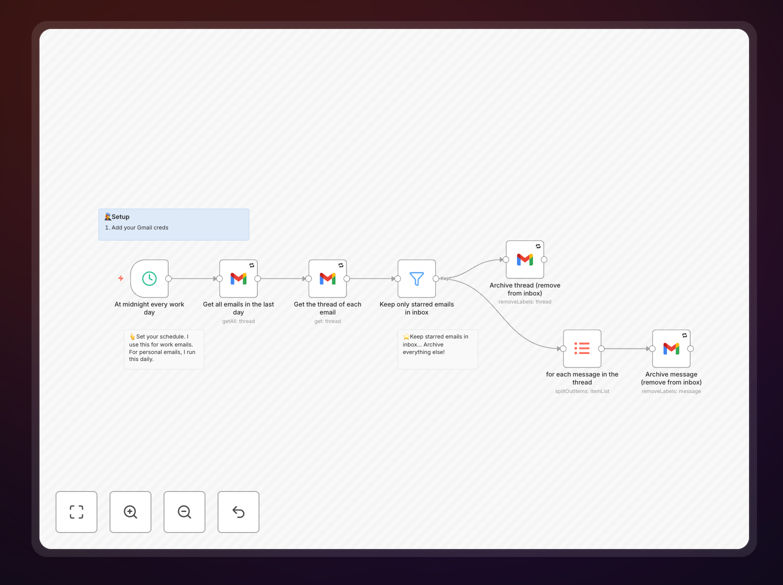
What This Workflow Does
This automation solves the common problem of email overload. Most professionals receive dozens of emails daily, many of which don't require immediate attention but still clutter the inbox. Manually sorting through these emails consumes valuable time and mental energy.
The workflow automatically archives Gmail emails from the last day, with a smart exception: it preserves any emails you've starred. This means urgent or important messages remain visible in your inbox, while routine notifications, newsletters, and non‑urgent communications get neatly filed away. It implements the "inbox zero" philosophy automatically, helping you maintain focus without constant manual triage.
Whether you're managing personal emails, work communications, or multiple accounts, this automation ensures your inbox stays clean while never losing track of what matters.
How It Works
Step 1: Scheduled Trigger
The workflow runs on a schedule you set (daily, hourly, or custom intervals). Each time it triggers, it checks your Gmail inbox for emails received within the last 24 hours.
Step 2: Fetch Recent Emails
It connects to your Gmail account via secure authentication and retrieves all emails from the specified time period. The connection uses OAuth for security, so your credentials remain protected.
Step 3: Filter Out Starred Messages
A filter node examines each email to check if it has been starred. Starred emails are excluded from archiving—they remain in your inbox because you've marked them as important.
Step 4: Archive Remaining Emails
All non‑starred emails from the last day are moved to the Gmail archive. They're not deleted—just removed from the primary inbox view. You can still find them via search or in the "All Mail" view.
Step 5: Optional Notifications
You can add notification nodes to receive a summary of what was archived, giving you visibility into the automation's actions without needing to check manually.
Who This Is For
This workflow is ideal for professionals, entrepreneurs, and teams who want to reduce email distraction without missing important communications. Specifically:
Busy executives and managers who receive high volumes of email but need to focus on strategic work. The automation keeps their inbox clean while preserving flagged messages from key stakeholders.
Remote workers and digital nomads managing multiple email accounts across time zones. They can set different schedules for personal and work emails.
Support teams who use starred emails to mark urgent customer issues while automatically archiving routine notifications.
Anyone practicing inbox zero who wants to maintain the system consistently without daily manual effort.
What You'll Need
- A Gmail account (personal, workspace, or both)
- n8n instance (cloud or self‑hosted)
- Google OAuth credentials set up in n8n (one‑time configuration)
- Basic understanding of how to import and activate workflows in n8n
Quick Setup Guide
Follow these steps to get this automation running in your n8n environment:
- Download the template using the button above. Save the JSON file to your computer.
- Import into n8n: In your n8n dashboard, go to Workflows → Import from file, and select the downloaded JSON.
- Configure Gmail connection: Click the Gmail node and authenticate with your Google account. This uses secure OAuth—you'll only need to do this once.
- Adjust the schedule: Modify the Schedule Trigger node to run at your preferred frequency (daily at 9 AM, every 6 hours, etc.).
- Test and activate: Run the workflow once manually to verify it works correctly, then activate it to run automatically.
Pro tip: Start with a shorter time window (like "last 2 hours") for testing, then expand to "last day" once you're confident. This prevents accidentally archiving more emails than intended during setup.
Key Benefits
Save 30–60 minutes daily that would otherwise be spent manually sorting through emails. That's 10–20 hours per month regained for higher‑value work.
Reduce cognitive load by eliminating constant inbox checking. A clean inbox means less mental clutter and better focus on actual tasks.
Never miss important emails because starred messages remain visible. The automation respects your manual prioritization while handling the routine.
Maintain consistency even when you're busy, traveling, or offline. The workflow runs on schedule regardless of your availability.
Scalable across multiple accounts—duplicate the workflow for different Gmail addresses with customized rules for each.